I saw a very interesting video by Alex Kretzschmar about how to add a nice colorful login banner using Figurine that displays the hostname. I thought this would be helpful when working with several SSH sessions, so I added it to my hosts.
To do this quickly and use the hostname for the login message, you can use thise script, otherwise follow along below
WARNING
Don’t just take my word for it. Always inspect the code that will be running on your machines, especially from an untrusted and unsigned source.
curl -s https://gist.githubusercontent.com/binarypatrick/2e33d8d3c79210dc74077627cb0deb9c/raw/ | sudo bash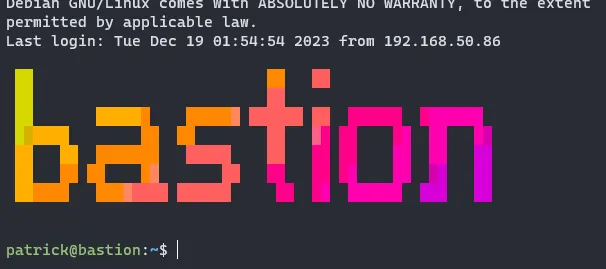
To start you need to download and install Figurine.
wget https://github.com/arsham/figurine/releases/download/v1.3.0/figurine_linux_amd64_v1.3.0.tar.gz -O deploy.tar.gz
tar -xvf deploy.tar.gz
sudo mv deploy/figurine /usr/local/bin
Once it’s installed you can test it by running the following
figurine -f "3d.flf" `hostname`Now you can create the profile script that will run on login.
sudo nano /etc/profile.d/figurine.shecho ""
figurine -f "3d.flf" `hostname`
echo ""You can test the file by running it manually.
sh /etc/profile.d/figurine.shNow that the file is created, exit and ssh back in to test it. Also don’t forget to cleanup the download and unpacked files.
rm -rf deploy*